Tommy Stephansen

Born in '84, I've always been a gamer at heart. My first gaming console was the Nintendo (NES), 8-bit system. I was sold from day one. Unfortunately, I couldn't get a SNES, but with patience came the PlayStation... The rest is pretty much history (for another time and place). Check out more about me on https://tommynation.com/about/

Most commented posts

  1. Hacking a Brother: Force your Printer into Printing in Black and White — 277 comments
  2. How to Install QuickTime on Windows 10 — 213 comments
  3. LG Home Link CIFS Problems and Solutions — 27 comments
  4. SSD Not Available During Windows 7 Setup — 26 comments
  5. How To: Create a Bootable USB to Install Windows — 21 comments

Author's posts

Sony Ericsson Android “Rachael” UI demo

The Sony Ericsson “Rachael” is an upcoming Android-based smartphone from Sony Ericsson rumoured to feature a Snapdragon processor from Qualcomm, which has awesome performance at clock speeds of 1-1.5 GHz depending on how they implement it. I bet it will be running at 1 GHz though.

The built-in camera sports an 8.1 MP sensor with auto-focus, while 3D-acceleration support boosts the usability of its many promising widgets.

For your mobile YouTube or TommyNation video streaming needs, 3.5G support is of course included with a 7.2Mbps HSDPA radio unit. Now if that doesn’t earn me some commissions…

Introducing the Sony Ericsson Aino

With PlayStation 3 Remote Play abilities and mostly all else one can ask for… I just fell in love with this one!


Open Old Windows Help Files in Windows 7

Microsoft has released a downloadable version of the good old Windows Help Reader for those times when you need to go old school in Windows 7. By that I mean having to open those infamous .HLP files.

You can fetch WinHlp32.exe for Windows 7 by visiting the download page on Microsoft Download Center.

How To: Make a Cat-6 Patch Cable

Category 6 (Cat-6) patch cable and plugs differ from Cat-5e. Cat-6 plugs are modular and specced to be of higher quality, in order to support the required 300 MHz signal rate and handle 1 Gbit/s to 10 Gbit/s transfer rates. Category 5e cable also supports Gigabit Ethernet, but limited by design to a maximum 100 MHz signal rate.

  1. Cut the needed cable length. If using boots for the plugs (the rubber thingies that usually feature a protective cap), slide them on now.
  2. Trim the outer cable about 3-4 cm / 1.2-1.5″ down. Untwist the cable pairs – use the outer insulation piece to do this faster.
  3. Cat-6 cable has a plastic spine that needs to be cut away before crimping the plug onto the cable. Fold the cable pairs out and pull on the spine while cutting it as far in as you’re able to do.
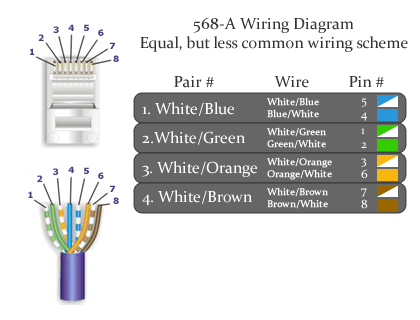
  4. Straighten the cable pairs well using your fingers and gather them next to each other in the correct order according to one of  the below diagrams. Hold them tightly together and cut them as straightly as possible. (If using a load-bar, cut them at a sharp angle for easier insertion. Recheck the sequence and insert them thru the load-bar one at a time.)CAT6 568-A Wiring Diagram
    CAT6 568-A Wiring Diagram
  5. Recheck the sequence of the wires, then insert them into the plug with the brown wires to the right side.
  6. Crimp the cable by inserting and aligning the plug into your preferred RJ-45 crimping tool. Make sure that all wires go all the way to the end of the plug.
  7. If using a boot for the plug, push it all the way down over the plug.
  8. Repeat for the other end. If making a crossover cable, refer to the other diagram for the second plug (568-A on one end and 568-B on the other).
  9. If you have a cable tester, this would be a good time to test that all the four pairs are working correctly. (See your device instructions).
  10. FINAL NOTE:
    There being two types of network cable – solid and stranded core, make sure you either know exactly which type of cable you have before buying the correct plugs, or buy plugs that support both types. Make sure, if using cable with an AWG (guage) of 22, that the cable and plugs are genuine AWG 22 Cat-6 (8P8C) – not just Cat-5/5e sold as Cat-6. If they’re actually guage 24, they may not make proper connection. Many asian manufacturers do not make the cables and plugs according to the quality requirements of Cat-6 specification (copper clad instead of 100% copper). True CAT6 plugs are modular and should have polished contacts. Some Cat-6 cables are too large and may be difficult to attach to 8P8C connectors without a special modular piece and are technically not standard compliant.

Adding Custom Cities to the HTC Weather App

htcweather

In the summer time I like to follow the weather more than usual, so as to not miss a single day of fun in the sun, as we get it so rarely where I live by the arctic circle. However, my new HTC Touch Diamond 2 did not have my town in the weather application! So I set out to get my small town added in, and eventually succeeded thanks to the forum over at xda-developers.com. So, here’s my recipe which takes into account more possible issues than the forums do.

  1. Download and install ActiveSync, .NET Compact Framework 3.5 Redistributable and CeRegEditor.
  2. Browse your HTC phone using Explorer and copy the file “2330fc3c_manila” from the Windows directory onto your PC. Right-click this file and select properties. Untick the box that says “Read-only”.
  3. Download SQLite Administrator. This program does not require installation.
  4. Open the “2330fc3c_manila” file from step 2 using SQLite Administrator on your PC (make sure you select “Any files” when browsing for it).
  5. Select the “Edit Data” tab and click to select the “Cities” table in the tree on the left.
  6. Pick a city you won’t need and edit the “CityName“, “Country” and “accuweatherCode” to match the city you plan to add. You should also edit the timezone and msid values to match another city in the same country and timezone. To find your correct accuweatherCode and other values, look up your desired city on AccuWeather and see the last part of the URL string in your browser that looks something like this: “EUR|NO|NO007|VADSOE“.
    Tip: If your city name contains special characters you may need to substitute them. Check for a city with the same special character and copy from it. This also applies to the city name in the “accuweatherCode” field, except for that the replacement characters may be different. For instance, The “CityName” field may use “Ã,” to replace “ø” in the HTC interface, while the “accuweatherCode” field uses “OE” or “O” to replace the same character. In the address bar of your browser, these characters may be displayed similarly to “%F8%7C”, but do not let that confuse you.
  7. Close the editor. Right-click the now updated database file and select properties. Tick the box that says “Read-only”. Copy the new file back to your HTC, replacing the existing file.Tip: To accomplish this on my HTC Touch Diamond 2 I had to use TotalCommander for Pocket PC. Install TotalCommander by downloading the CAB file to your HTC and running it. Browse to the Windows directory and scroll down to the “2330fc3c_manila” file. Open the properties and remove the “Read-only” attribute. Copy the new “2330fc3c_manila” file from your computer to any folder on your HTC except the Windows folder. Then copy it in TotalCommander to the Windows folder, replacing the old file.
  8. Almost done! Using CeRegEditor, add the following registry key:
    [HKEY_CURRENT_USER\Software\HTC\Manila]
    “Weather.ServerURLOverride”=”http://weather.not2advanced.com/htcweather/forecastdata.php?ac=XDADevs&locCode=%25ls&version= 1&device=innovation”

    Tip: Do not include the “s. Add a new “String” with the name being the first part before “=” and value being the long URL.

  9. Shut down and start your HTC (aka soft reset) and it should now work when you add your new city (or cities)!
[HKEY_CURRENT_USER\Software\HTC\Manila]
"Weather.ServerURLOverride"="http://weather.not2advanced.com/htcweather/forecastdata.php?ac=XDADevs&locCode=%25ls&version= 1&device=innovation"

How To: Create a Bootable USB to Install Windows

Windows 8It’s simple to create a bootable USB to install newer Windows, Windows 8, Windows 7 or Vista as long as you follow this guide.

UPDATE! READ THIS!

You can now easily skip most of the steps further down in this guide. Why? You can simply download the Windows 7 USB/DVD Download Tool from Microsoft and create a bootable USB to install your desired Microsoft Windows operating system.


Click here to download the Windows USB/DVD Download Tool


Despite its name, this tool works with both Windows 7, Windows 8 and newer.

The tool will automatically format the USB stick you select to make it bootable, then extract the ISO-file you choose and copy the files onto the USB stick. Once the process is done, you’re good to go!

Click here to check the official USB/DVD Download Tool guide if you get stuck or have any issues downloading the tool.

WINDOWS USB DVD DOWNLOAD TOOL[/important]

Quick note for Windows 8: Please check for any new BIOS versions before installing. Many motherboards have been getting new BIOS updates for Windows 8 optimization. Read the notes carefully before updating your motherboard using these new BIOS versions, as the manufacturer may have special instructions for updating the motherboard to support a completely new BIOS file format known as .CAP, before you can update to the absolutely latest BIOS version.

First you need to fulfill the following list of prerequisites, which I have expanded on much more than most guides similar to this one, so that you will be prepared for everything:

  • A USB stick or similar USB storage device (aka” USB Flash Drive”) with a minimum of 3 GB capacity
    (Tip: Some USB drives don’t work well as boot devices on certain systems. If you experience any issues, try a different flash drive.)
  • Windows 8, Windows 7 or Vista source files (from an ISO file or DVD)
    (Tip: If you have obtained an ISO file, you may extract it using 7Zip or WinRAR.)
  • BIOS Settings and Hardware Checks:
    1. Change the boot priority of USB devices so that they are above any harddisks.
    2. Check the boot order for your hard disks. If your USB connected device shows up here, usually you need to hit “Page Up” (PGUP) to move it all the way to the top.
  • Check that your computer supports booting from USB devices. If not, then you probably can’t boot from your USB media. You would need to run the installation from your DVD-drive or obtain an external DVD-drive or adapter.

(Tip: See your PC manual or a tech savvy friend if you have issues with this step. Normally you need to press either F2, F3, F5 or F12 to access the boot menu. Sometimes it helps to press ESC to see what you need to press if neither of those are working.)

Now let’s make a bootable USB device!

But first…

  • You need to obtain the correct version of BOOTSECT.EXE (64-bit/x64 or 32-bit/x86)
    If you’re making the USB bootable media for a 64-bit version of Windows on a 32-bit version of Windows, you need to get yourself the 32-bit version of the BOOTSECT.EXE tool used in this guide, as the 64-bit version found included in the 64-bit source files won’t run on a 32-bit OS. You should be able to get this from any 32-bit install source for Windows 8, Windows 7 or Vista. I cannot put it on my blog, because it is prohibited by the Microsoft EULA.
  1. Plug in your USB stick and backup any important files that you may want to keep.
  2. Open Command Prompt with administrator rights using either of the following methods:
    • Hit the Windows key + R and type CMD. Hit CTRL + SHIFT + ENTER.
    • Type CMD in the Start menu search box. Hit CTRL  + SHIFT + ENTER.
    • Go to Start > All programs > Accessories and right-click on Command Prompt, then select “Run as administrator“.
  3. Type the following commands in the Command Prompt box to find the disk number of your flash disk:
    • DISKPART
    • LIST DISK
  4. Identify your flash disk and note the disk number, then enter the following commands – assuming your USB stick’s disk number is 1:
    • SELECT DISK 1
    • CLEAN
    • CREATE PARTITION PRIMARY
    • SELECT PARTITION 1
    • ACTIVE
    • FORMAT FS=NTFS QUICK
      (QUICK is the switch for Quick Format. Run the command without QUICK if you want all sectors checked. This could take a long time depending on the size and speed of the disk.)
    • ASSIGN
    • EXIT
      (BUT DON’T CLOSE THE COMMAND PROMPT YET!)
  5. Still in Command Prompt? Good, because  you’ll need it again in a few seconds…
  6. If you have an ISO image of Windows 8, Windows 7 or Vista, you may now extract it if you haven’t already, then follow step 6.1. If you have a DVD, follow step 6.2:
    6.1: Assuming you extracted the ISO to C:\Win7, bring up your Command Prompt again, then browse to the BOOT folder by typing: “CD C:\Win7\boot
    6.2: Assuming your DVD drive letter is “D”, bring up Command Prompt and browse to the BOOT folder by typing “D:CD boot”.
  7. Assuming your USB stick drive letter is “E”, type the following command to make the USB stick bootable:
    • BOOTSECT.EXE /NT60 E:
  8. You should see a message saying “Successfully updated NTFS filesystem bootcode. Bootcode was successfully updated on all targeted volumes.”
    [notice]If you get an error about x64/x86 incompatibility at this stage, you need to obtain the correct version of BOOTSECT.EXE – see the 4th bulletin at the very top of this guide for more info.[/notice]
  9. Copy all of your previously extracted Windows installation source contents to the USB stick.
  10. Your USB stick is now ready for use! Remember to enable USB boot and change boot priority so that USB-drives are above any harddisks in the boot priority in the BIOS. Refer to your system manual for instructions on how to do this. Also, remember that some USB sticks don’t work as well as others as boot devices, especially with certain older systems that claim to have USB boot capabilities. I can confirm that it worked with a SONY 4GB USB stick on a Dell Latitude E4200 for me, and has worked with many others for people I know. The least reliable kind of USB stick seems to be the variety that come as USB adapters for different memory cards, like SD Card or Memory Stick, BUT they may work even if they don’t appear as USB devices, as they will often simply be listed as harddisks instead.